BBCAM202 - How To Share With Another User Account
The account you first set the camera up with becomes the admin account. From its camera settings you can tap 'Share Device' and enter another person's Tapo account email to give them view-only access to the live stream and recordings — they can't change settings. There's no way to transfer admin ownership directly; to change it, you'd need to remove the device (which factory resets it) and set it up again on the new account.
Overview
When you first set up the camera, it will be linked to the Tapo/TP-Link account you set it up with. That account will be the admin account. It's also possible to share the camera with other accounts so that they can view the live stream and recorded footage.
Share With Another User
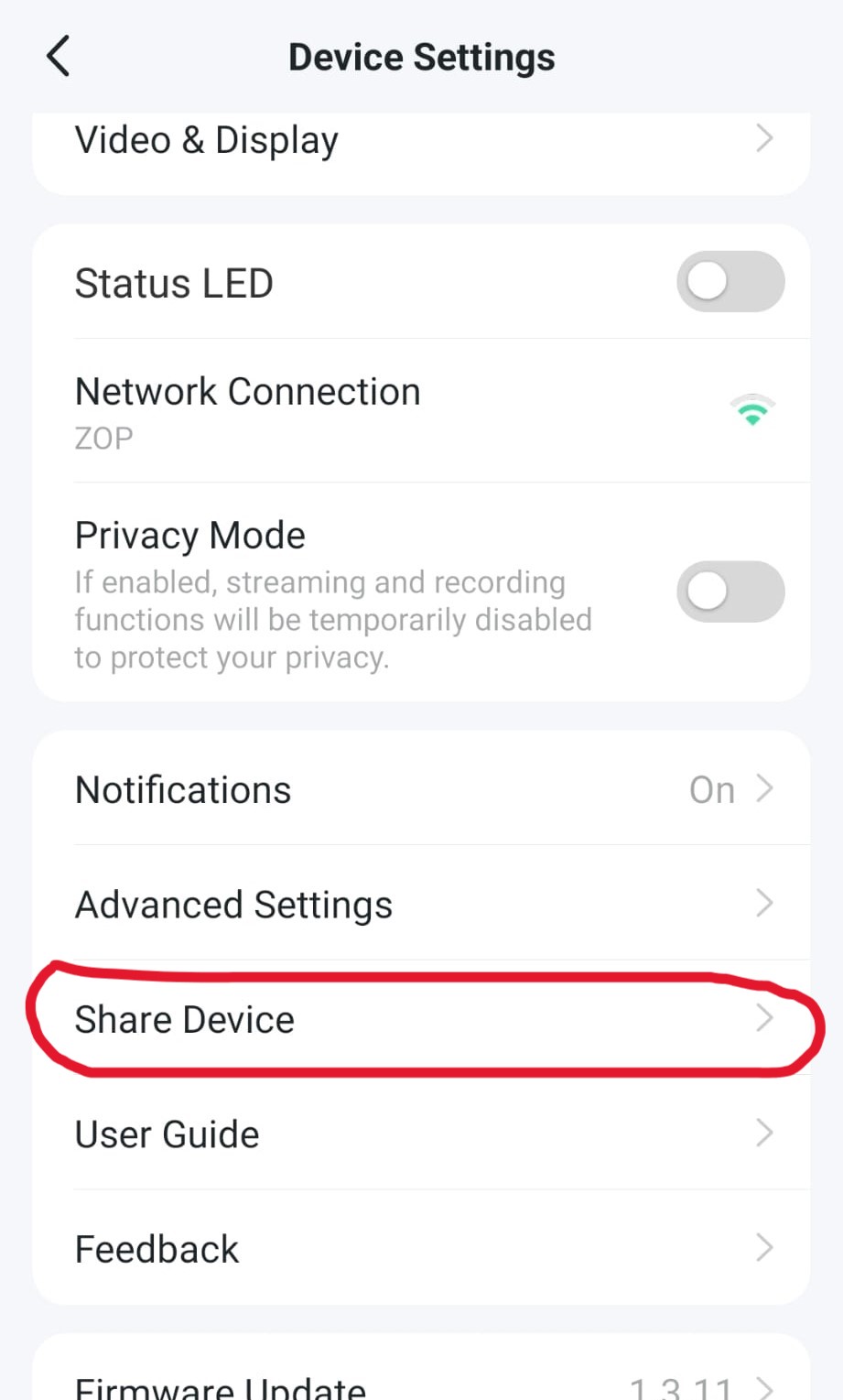
1. On the admin account, go to the camera's settings and tap 'Share Device'.
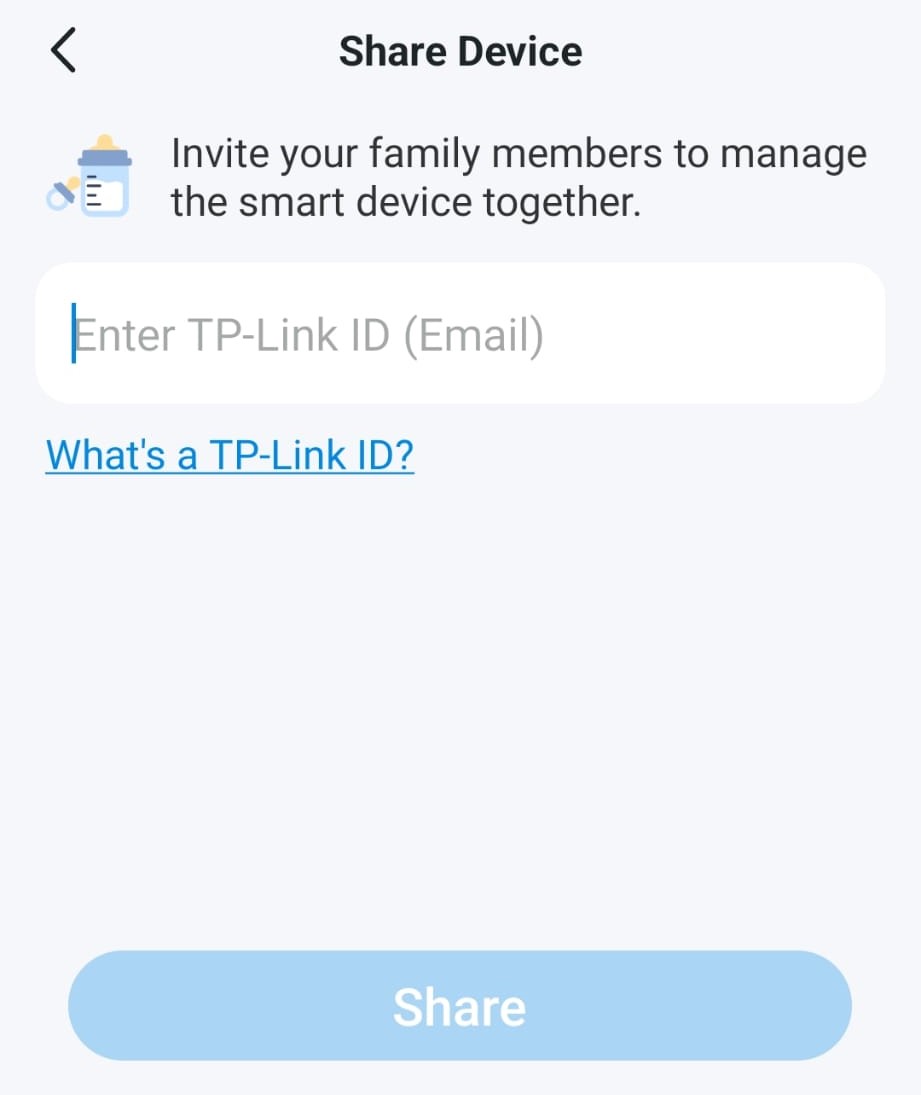
2. Enter the email address of the person you wish to share with, then tap 'Share'.
Note: they will need to have signed up to a TP-Link account using that email.
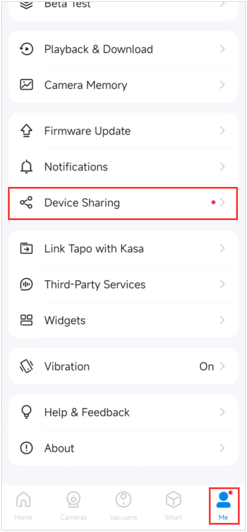
3. On the second person's device, tap 'Me' then 'Device Sharing'.
4. You should then see the camera listed under the 'Devices From Others' screen. Tap 'Accept' to accept the invitation.
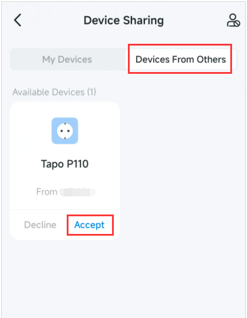
The camera will now appear on the second account. That user can view the live stream and recorded footage, but can't change any settings.
Changing The Admin Account
There's no option to transfer the admin account to a different user.
If you wish to change the admin/owner associated with the device, you need to remove the device from your account (this will also factory reset the camera). After this, you can set up the camera again as if new, on the new account, which will then become the admin/owner of the device.
See our BBCAM202 factory reset instructions for more on resetting and setting up the camera.
Products this applies to
 Best For Beginners
Wi-Fi Bird Nest Box Camera Kit - BBCAM202
One of the best value for money Wi-Fi bird box cameras on the market!Ever wondered exactly what's going on in your bird box? Maybe you're looking for the per...
 Plug And Play
Bird Nesting Box With Built In Wi-Fi Camera
Bird Nesting box with built in HD WiFi camera! This is a complete kit that includes a 10M power cable, mains power supply, and 8GB memory card, all fitted an...