BBCAM221PRO - Night Vision Settings
By default the camera automatically switches to infrared night vision when it's dark and back to colour once it's bright enough — normal even during the day if the box is shaded. If your camera doesn't have a white light (most bird box cameras), leave it set to Infrared Mode; cameras with a white light can also use Full-Colour Mode or Intelligent Mode, which only lights up and switches modes when it senses motion.
Overview
Your camera has built-in night vision (black and white). It uses infrared LEDs to be able to see in the dark.
By default, when the camera detects there isn't enough light for a good-quality colour image, it will automatically switch to night vision mode. When it detects it's bright enough again, it will switch back to day mode.
Night Vision On During The Daytime
As the camera switches automatically depending on brightness levels, it may sometimes switch night vision on during the day.
This is normal earlier in the year, as inside a bird box can still be quite dark during the day on overcast days — especially if the box is mounted in a well-shaded location, such as up a tree.
As the year moves on and the days get brighter, the camera will spend more time in full-colour mode.
Adjusting The Night Vision Settings
You can manually set the night vision mode of the camera.
Note that some cameras are fitted with a white light — the night vision settings also adjust when it switches on. If your camera doesn't have a white light (such as a bird box camera), you should leave the night vision set to Infrared Mode.
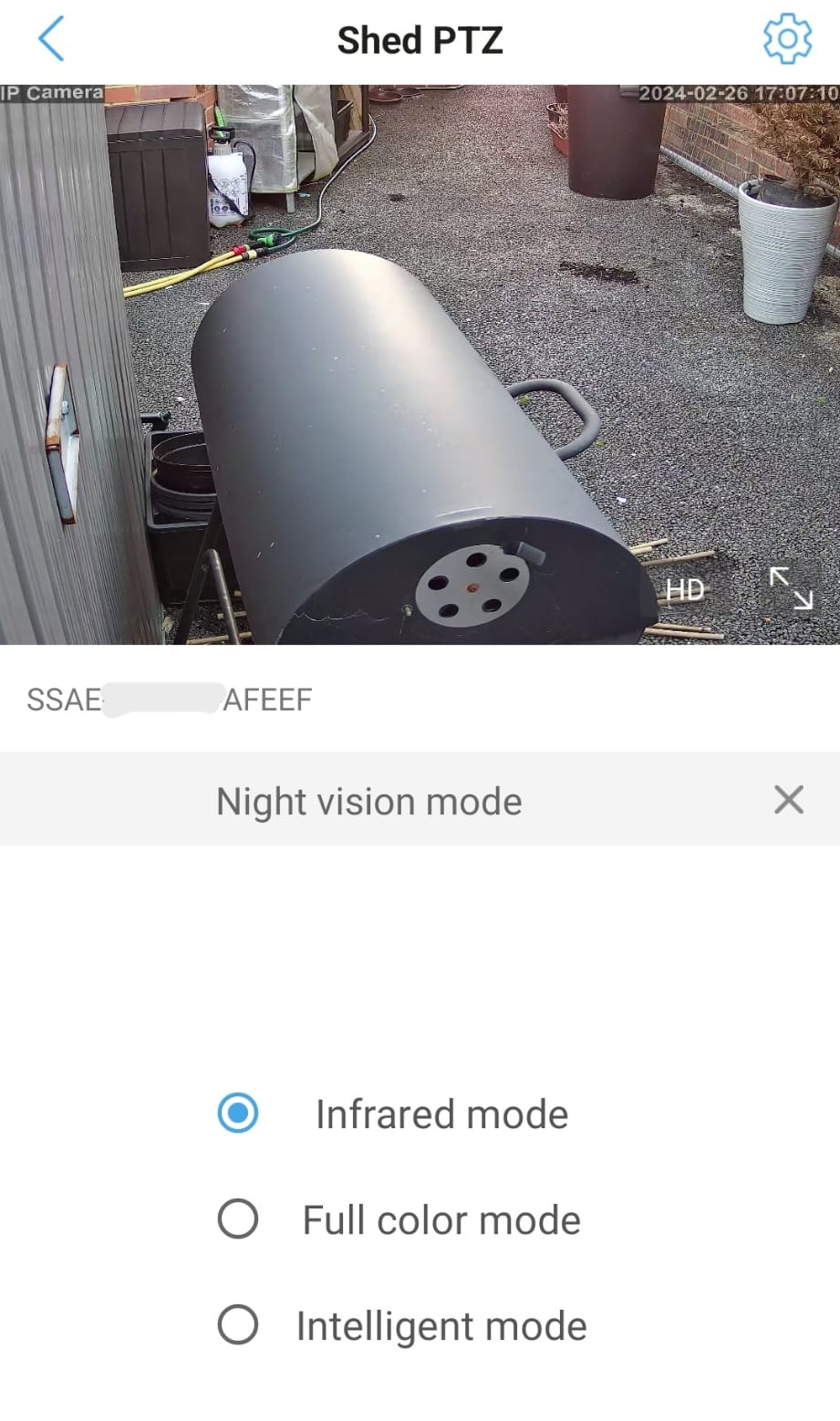
The camera has 3 possible settings:
- Infrared Mode – the camera will automatically switch on night vision when it gets dark, and switch it off again when there's enough light.
- Full-Colour Mode – the camera will stay in daytime colour mode, and if fitted with a white light, it will be switched on.
- Intelligent Mode – the camera will automatically switch on the white light and night vision off when it senses motion, then switch the white light off and night vision back on once the motion has ended.
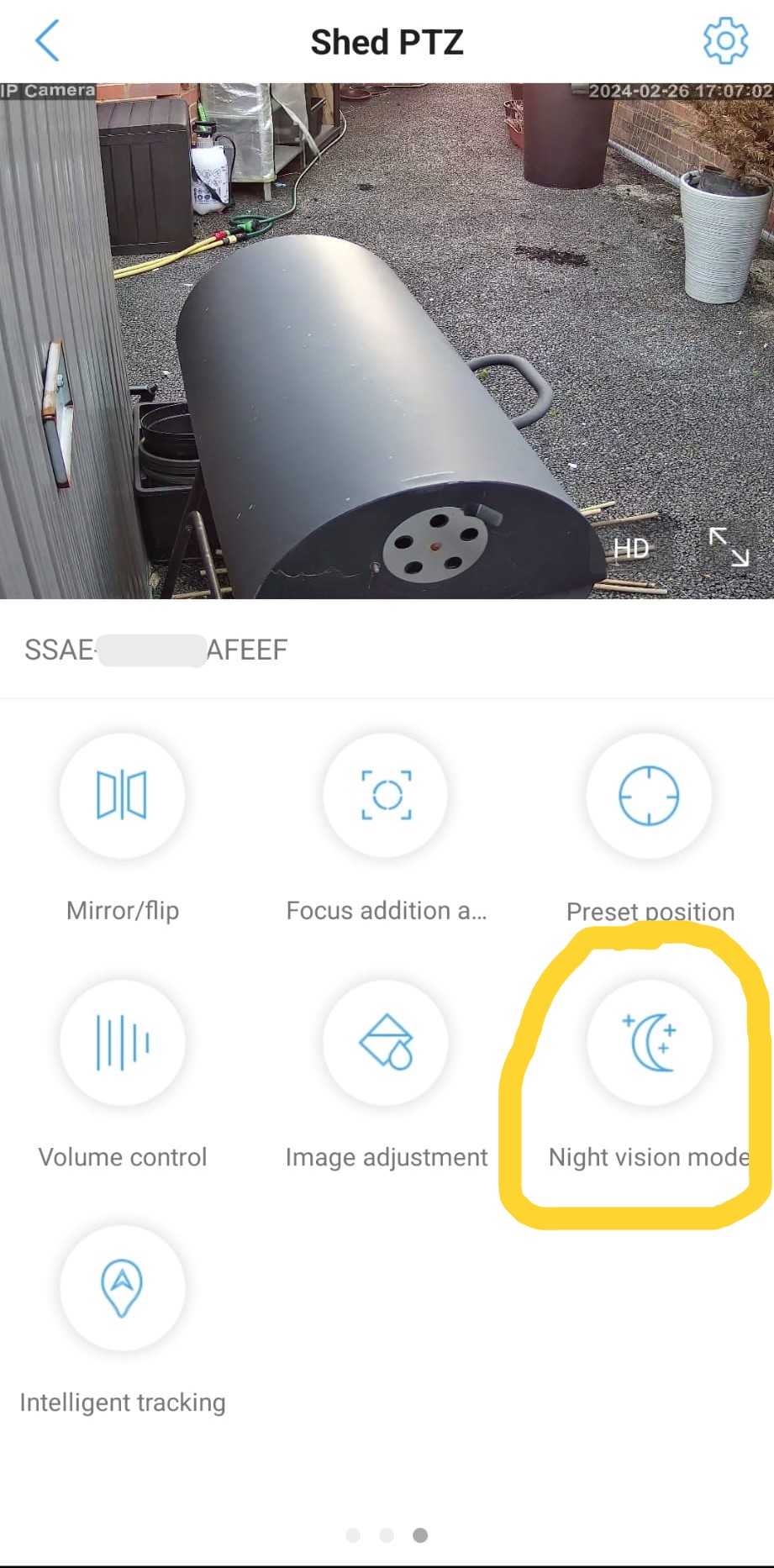
To adjust the setting, tap the mode button as circled in yellow below, then tap your desired setting.
Products this applies to
 Most Popular
Universal Wi-Fi Bird Box Camera Kit PRO - BBCAM221PRO
Professional Grade Universal Bird Box WiFi Camera Kit - One of the highest quality kits on the market!Check out the example footage video above to see just h...
 Water Resistant
HD Wi-Fi Wildlife Camera PRO Kit
The Zopkins Wildlife Camera PRO is an amazing little professional grade mini camera. It's fully weather proof, meaning it can be used indoor and outdoor, all...

4G Sim Card Farm / Yard Camera
Keep an eye on what matters most to you from anywhere in the world. Our 4G Static Sim Cameras enable you to quickly and easily set-up CCTV in remote areas wi...

4G / Wi-Fi Static Sim Card Farm / Yard Camera
Please Note: We are currently shipping black versions of this camera.Keep an eye on what matters most to you from anywhere in the world. Our 4G Static Sim Ca...
 Out of stock
4G PTZ Sim Card Farm / Yard Camera
Keep an eye on what matters most to you from anywhere in the world. Our 4G / WiFi PTZ Sim Cameras enable you to quickly and easily set-up CCTV in remote area...