BBCAM221PRO - How To View And Save Footage (CamHi App)
Open the SD Card screen in the CamHi app to browse and play back clips (including motion-triggered 'Alarm Recording' clips), download the ones you want to keep to the app's own storage, then use the folder screen to convert and save them to your device's photo gallery, ready to share.
Footage is saved on the Micro SD card in the camera.
The instructions below explain how to view the footage on the SD card, and then save the footage to your device in the app. Once you have the footage saved on your device, you can then share it.
Step 1
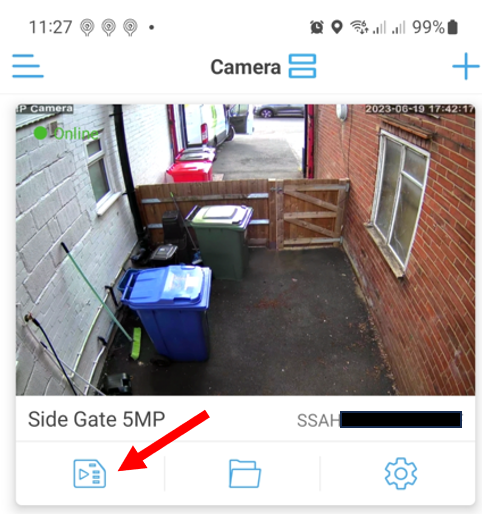
Open the app and tap the SD Card icon.
Step 2
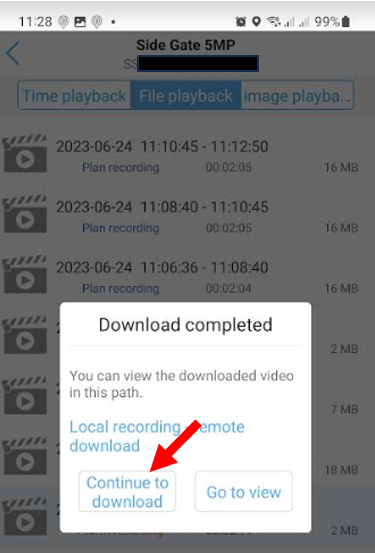
A screen will load that shows you the video clips saved on the camera's SD card.
Clips labelled 'Alarm Recording' are clips that were triggered by motion detection. You can tap the magnifying glass in the bottom right-hand corner to select the time frame for which clips are shown.
- To view a clip, tap the clip and then tap 'Play'.
- To save a clip, tap the clip, then tap 'Download'. Once downloaded, tap 'Continue to download'.
Downloaded clips are saved locally in the CamHi app. To view the clips you have saved, and to download them to your device's gallery, continue to the next step.
Step 3
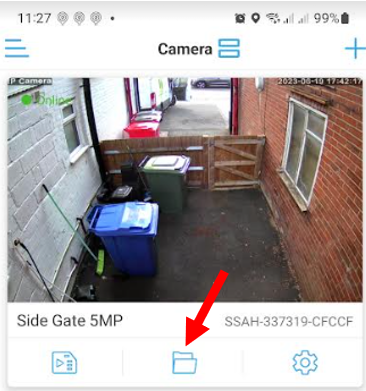
On the main screen, tap the folder icon.
Step 4
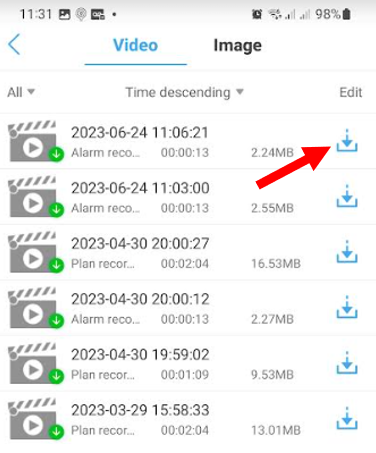
A screen will appear showing you any video files you have saved in the app. To download a file to your device, tap the download icon, then tap 'Determine'.
The video file will then be converted to MP4 and saved to the photo gallery on your device. You can then play back and share the footage with others.
Additional Information
- The time and date set in your camera must be set correctly. If it is not, the wrong time and date will be saved with the footage, which can make it difficult to find later.
Products this applies to
 Most Popular
Universal Wi-Fi Bird Box Camera Kit PRO - BBCAM221PRO
Professional Grade Universal Bird Box WiFi Camera Kit - One of the highest quality kits on the market!Check out the example footage video above to see just h...
 Water Resistant
HD Wi-Fi Wildlife Camera PRO Kit
The Zopkins Wildlife Camera PRO is an amazing little professional grade mini camera. It's fully weather proof, meaning it can be used indoor and outdoor, all...

4G Sim Card Farm / Yard Camera
Keep an eye on what matters most to you from anywhere in the world. Our 4G Static Sim Cameras enable you to quickly and easily set-up CCTV in remote areas wi...

4G / Wi-Fi Static Sim Card Farm / Yard Camera
Please Note: We are currently shipping black versions of this camera.Keep an eye on what matters most to you from anywhere in the world. Our 4G Static Sim Ca...
 Out of stock
4G PTZ Sim Card Farm / Yard Camera
Keep an eye on what matters most to you from anywhere in the world. Our 4G / WiFi PTZ Sim Cameras enable you to quickly and easily set-up CCTV in remote area...