BBCAM221PRO - How To Factory Reset (CamHi App)
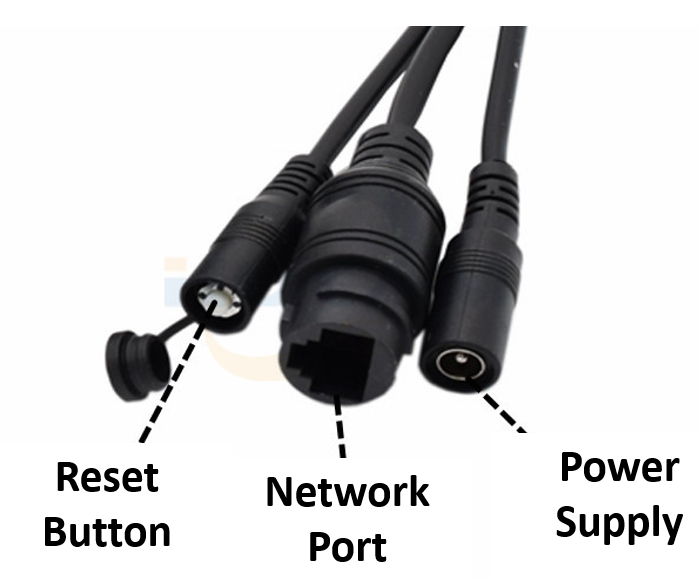
Power up the camera and let it boot, then locate the reset button on the end of one of the camera's wires (usually under a small cap) and hold it for 8 seconds. Give it about 5 minutes to reset and reboot, then reconnect using the default username and password 'admin' — this doesn't erase anything already recorded to the memory card.
Factory resetting your camera will reset all the settings back to default, including the password and Wi-Fi configuration details. Please note this does not erase any files on the memory card.
Step 1
Power up your camera and allow it a couple of minutes to boot up.
Step 2
Locate the reset button — it's on the end of one of the wires coming out of your camera, usually under a little cap. Press and hold the reset button for 8 seconds.
Step 3
Allow your camera 5 minutes to reset and boot back up. After this your camera will be reset and ready to be re-connected.
Additional Information
- The default username is 'admin' and the default password is 'admin'.
- If you have a 4G camera and it's still loaded in the app it may say 'Wrong Password'. Tap the camera and enter 'admin' in the password box.
- When you first reconnect to the camera it will ask you to set a new password.
- If you have a Wi-Fi camera then it will need setting up with your router again after a reset.
Products this applies to
 Most Popular
Universal Wi-Fi Bird Box Camera Kit PRO - BBCAM221PRO
Professional Grade Universal Bird Box WiFi Camera Kit - One of the highest quality kits on the market!Check out the example footage video above to see just h...
 Water Resistant
HD Wi-Fi Wildlife Camera PRO Kit
The Zopkins Wildlife Camera PRO is an amazing little professional grade mini camera. It's fully weather proof, meaning it can be used indoor and outdoor, all...

4G Sim Card Farm / Yard Camera
Keep an eye on what matters most to you from anywhere in the world. Our 4G Static Sim Cameras enable you to quickly and easily set-up CCTV in remote areas wi...

4G / Wi-Fi Static Sim Card Farm / Yard Camera
Please Note: We are currently shipping black versions of this camera.Keep an eye on what matters most to you from anywhere in the world. Our 4G Static Sim Ca...
 Out of stock
4G PTZ Sim Card Farm / Yard Camera
Keep an eye on what matters most to you from anywhere in the world. Our 4G / WiFi PTZ Sim Cameras enable you to quickly and easily set-up CCTV in remote area...